UiPath Integration

MailSlurp email and SMS APIs integrate with UiPath to provide messaging and testing automation. Create and control real email accounts and phone numbers from your automations using low-code HTTP requests or the native C# library.
Please see our UiPath project on GitHub to get started.
How it works
You can integrate programmable email accounts and phone numbers in MailSlurp by invoking the REST API with UiPath's built-in HTTP Request activity.
Calling the MailSlurp API
To create inboxes, read emails, and more, use the HTTP App Integration within UiPath to call api.mailslurp.com endpoints.
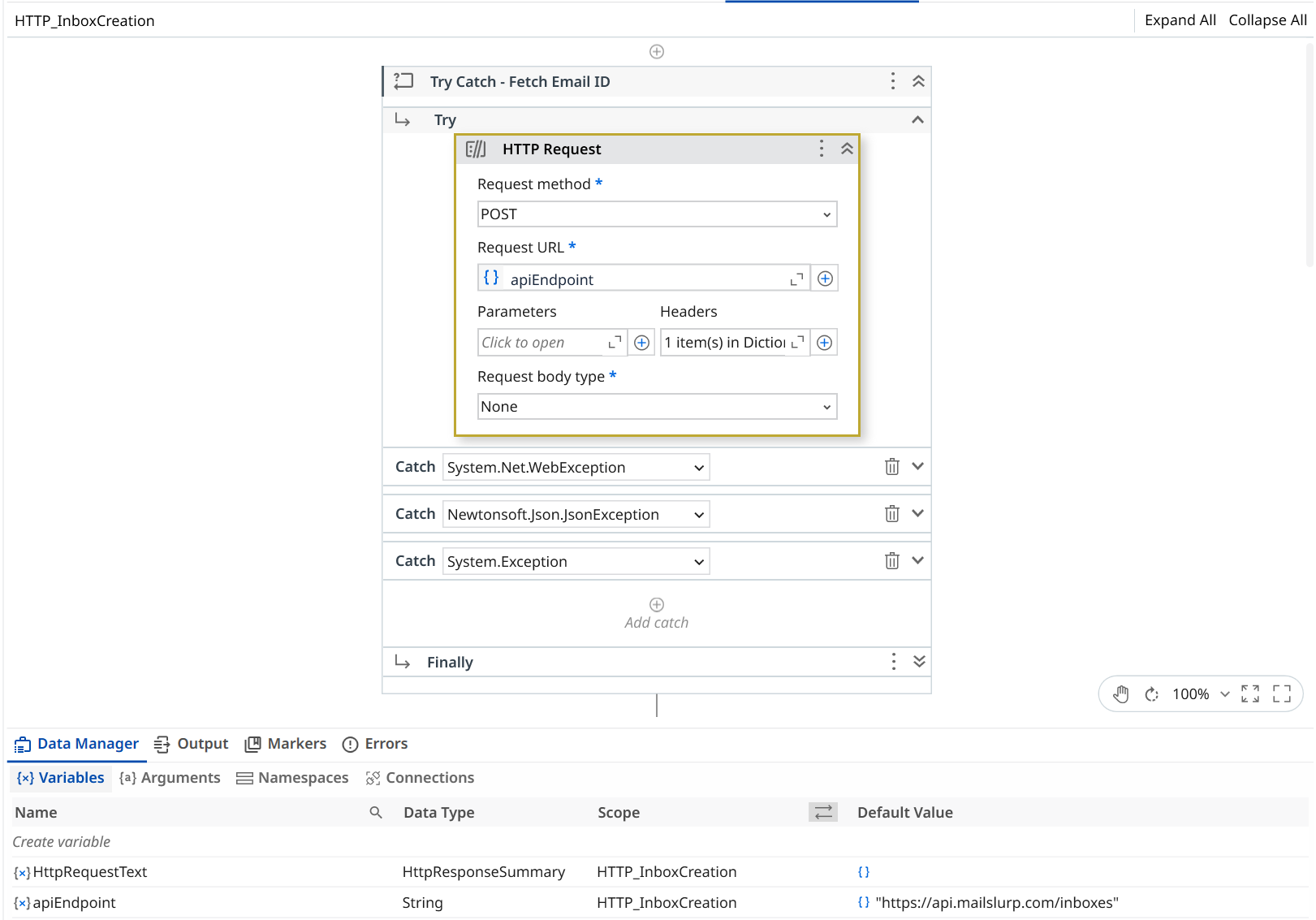
NOTE: You must pass a valid
x-api-keyheader set to your MailSlurp API key.
Storing response variables
MailSlurp APIs return JSON data. Use the Assign activity to save variables for use in subsequent steps.
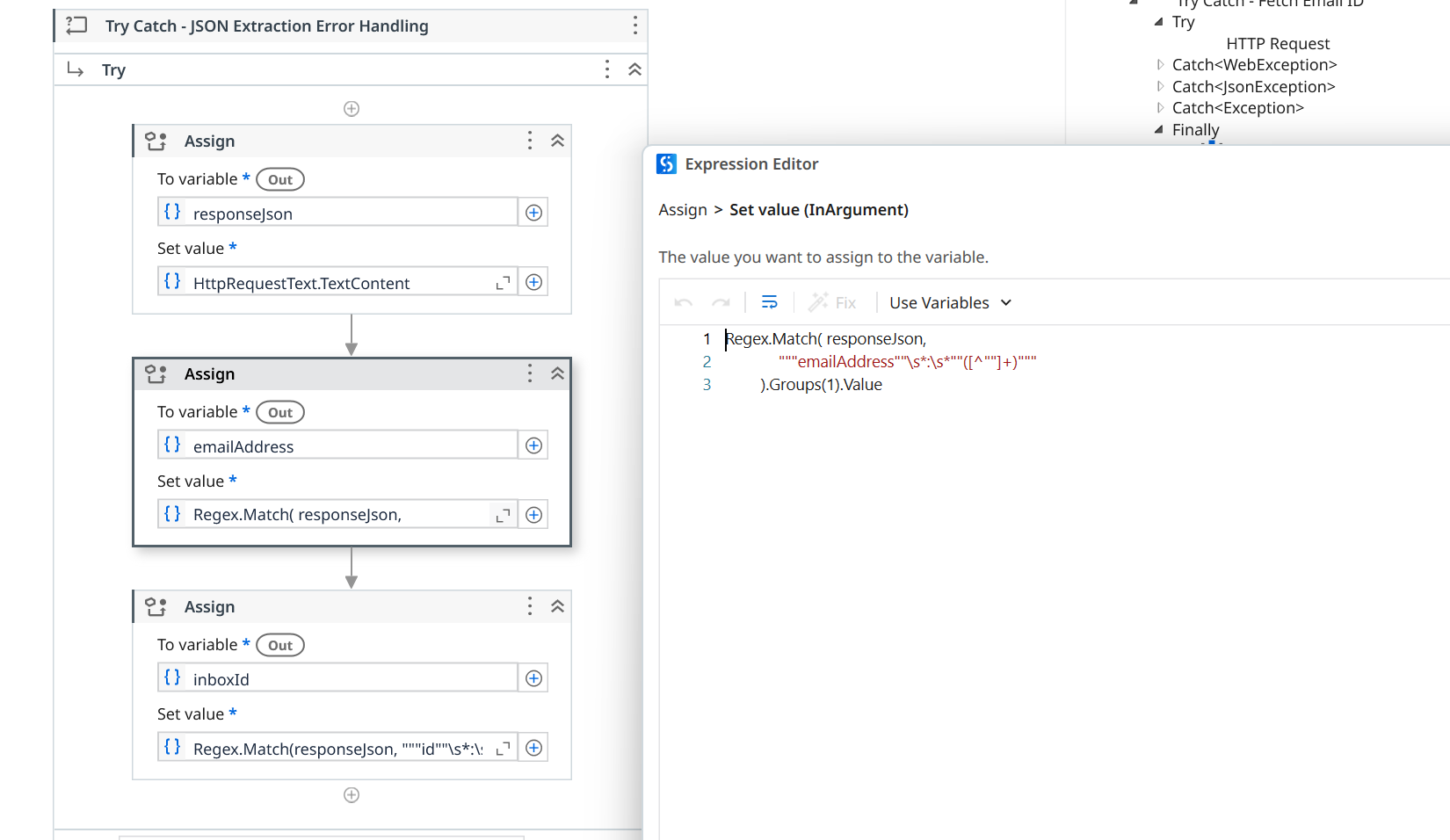
Use Deserialize JSON activity or Regular expressions to extract variables from responses like inbox id, emailAddress and more.
Example testing flow
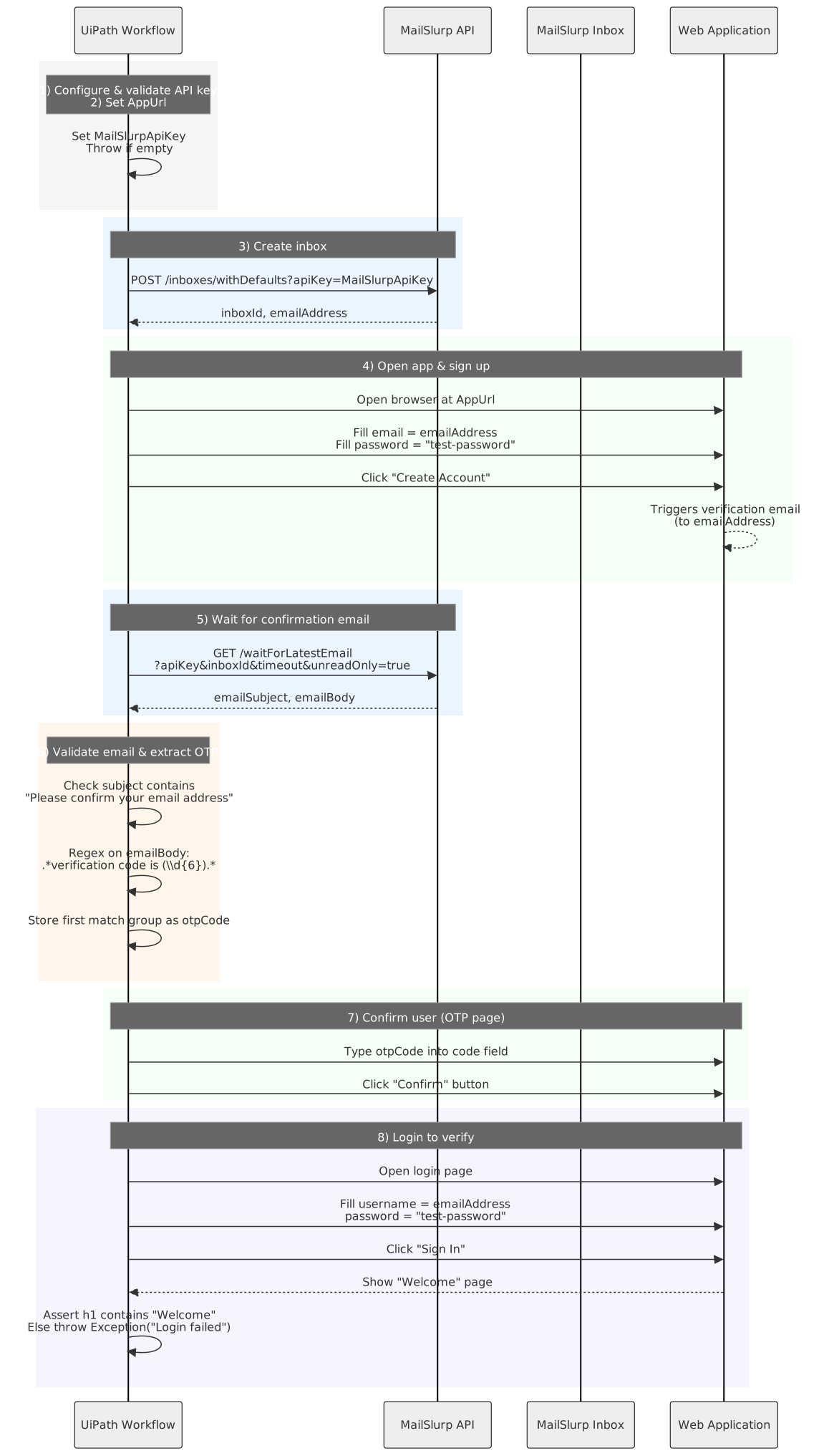
Say you want to test the user sign-up and verification process in a web application in UiPath. With MailSlurp we can create a test email account, submit it to the web application, receive and extract an OTP code, and confirm a new account. This can form the basis of our automated UiPath test of an application sign-up flow. You can see it in action in the video below:
And here is a diagram of how a test like this might work:
Setup in UiPath Studio
To test email and SMS in UiPath Studio create a workflow with a series of steps. These steps are comprised of HTTP Request actions to the MailSlurp API and Browser automation steps that use the email accounts and phone numbers within automations and tests. An example main.xaml would look like this:
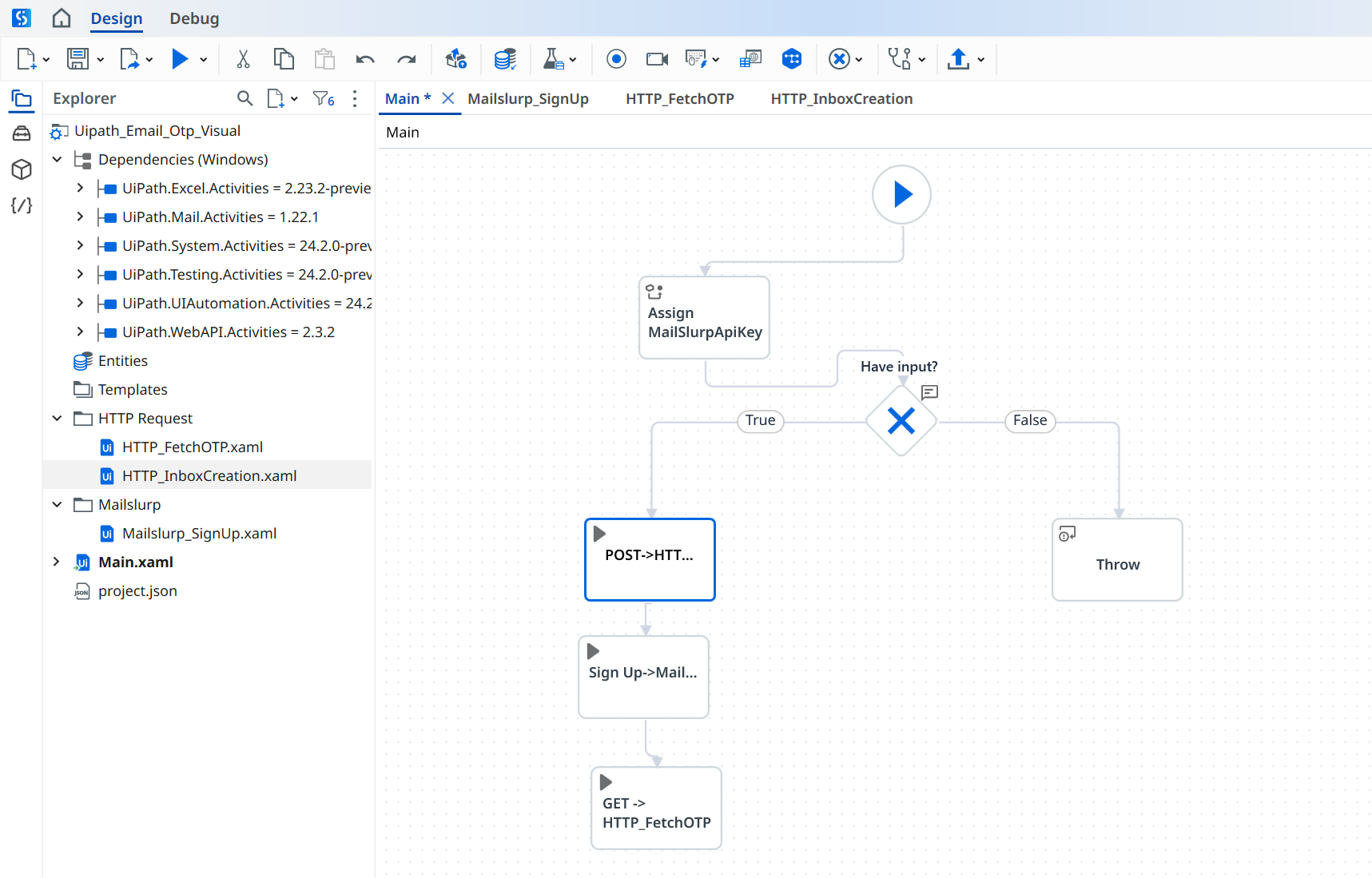
You can combine MailSlurp API actions to create phone numbers and email accounts on demand then send and receive emails, attachments, and SMS within automations and RPA workflows. For more methods see the API endpoints
Important actions
Here are some common actions for creating inboxes, reading emails, and extracting codes. Use the UiPath Studio HTTP Request actions to invoke these MailSlurp endpoints. Make sure you set an x-api-key header with the value of your MailSlurp API Key.
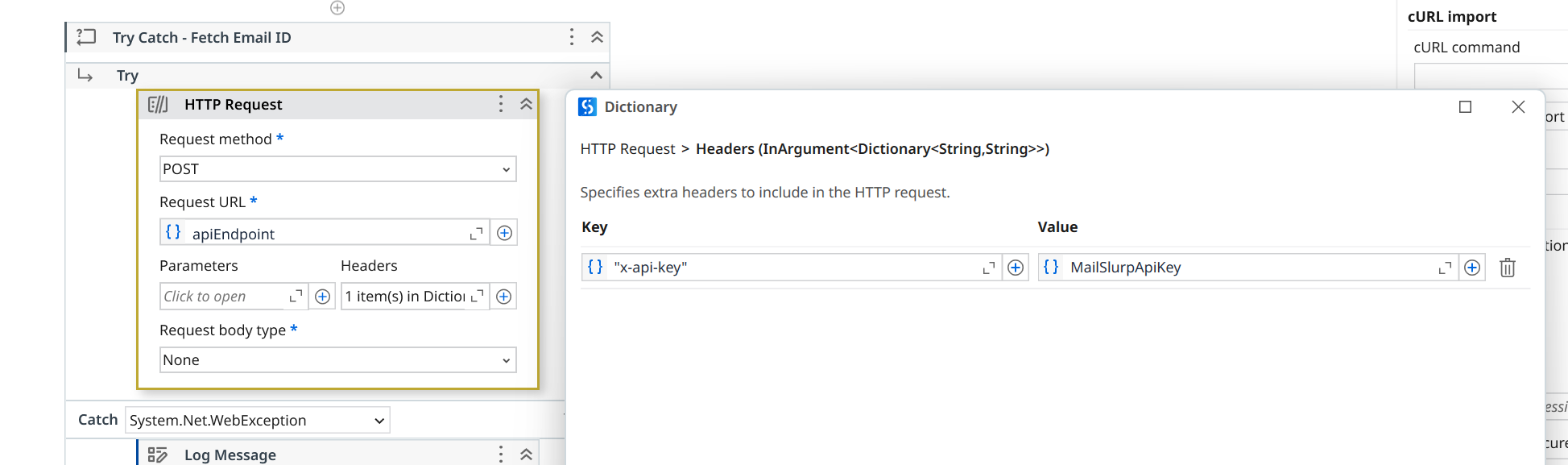
Create inboxes
To create a new email address use the operation below:
createInboxWithDefaults not found.To save the inbox id and emailAddress for use in further steps use the UiPath Regex extract action to pluck these values from the JSON response.
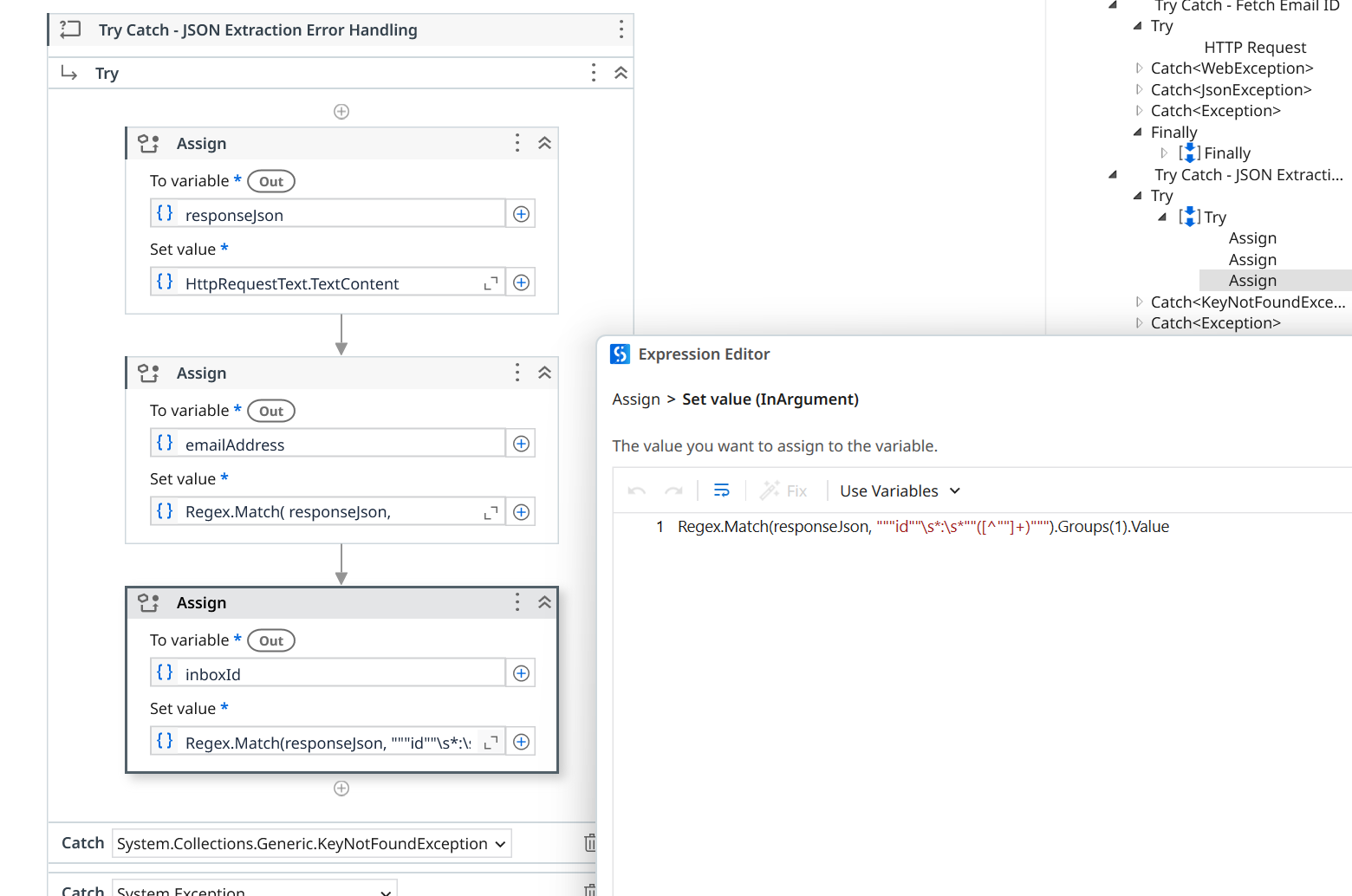
Wait for email
To wait for emails in your tests, use the waitForLatestEmail MailSlurp endpoint.
waitForLatestEmail not found.In UiPath Studio this request looks like this:
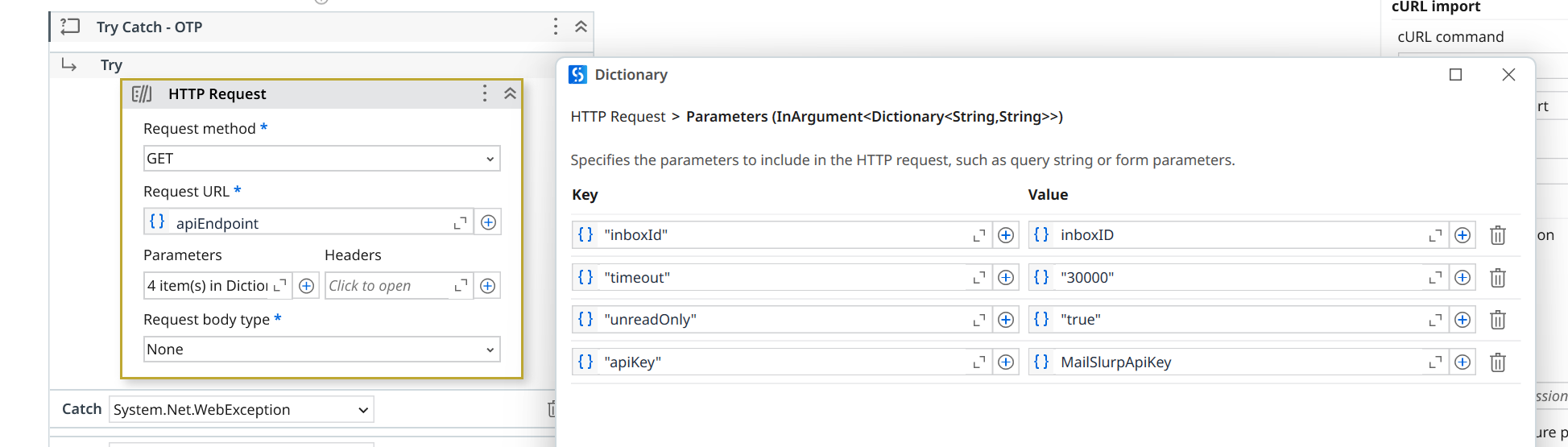
Extract content
You can extract content from emails and SMS using regular expression patterns by passing them to the MailSlurp API with HTTP.
getEmailContentMatch not found.